ADD PROJECT & CUSTOMER
Add Project
When you click the Add Project button on the Manager Dashboard, the Add/Modify Project form opens, allowing you to create a new project or modify an existing one.
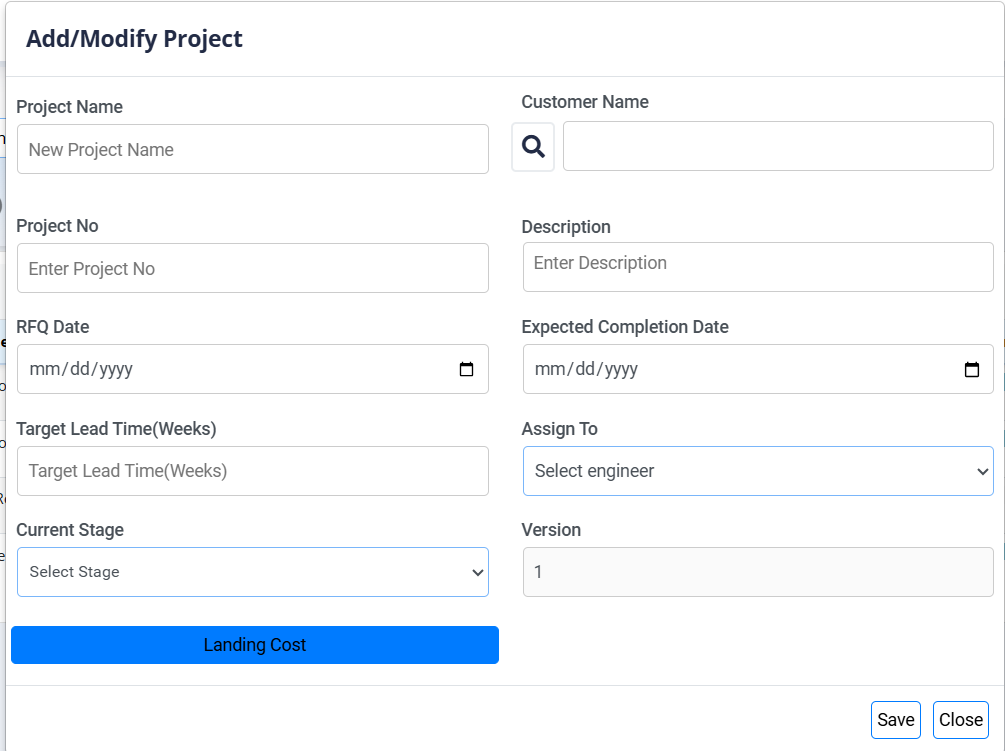
Project Details
- Project Name: Text field to enter the name of the project.
- Customer Name: Field to specify the customer associated with the project. A search icon allows you to search for and select an existing customer.
- Project No: Text field for a unique project number or identifier.
- Description: Text area to provide a detailed description of the project.
- RFQ Date: Date picker to set the Request for Quotation date.
- Expected Completion Date: Date picker to set the project's expected completion date.
- Target Lead Time (Weeks): Field to specify the desired lead time for the project in weeks.
- Assign To: Dropdown to assign the project to a specific engineer.
- Current Stage: Dropdown to set the current stage of the project lifecycle.
- Costing (Estimation stage): Estimate product cost and Lead time before production.
- Procurement (Actual production stage): Purchase and secure materials for actual production.
- Version: Field to track the version of the project (defaults to
1for new projects).
Landing Cost Configuration
This section allows you to configure how landing costs are calculated for the project. The configuration follows a sequential flow:
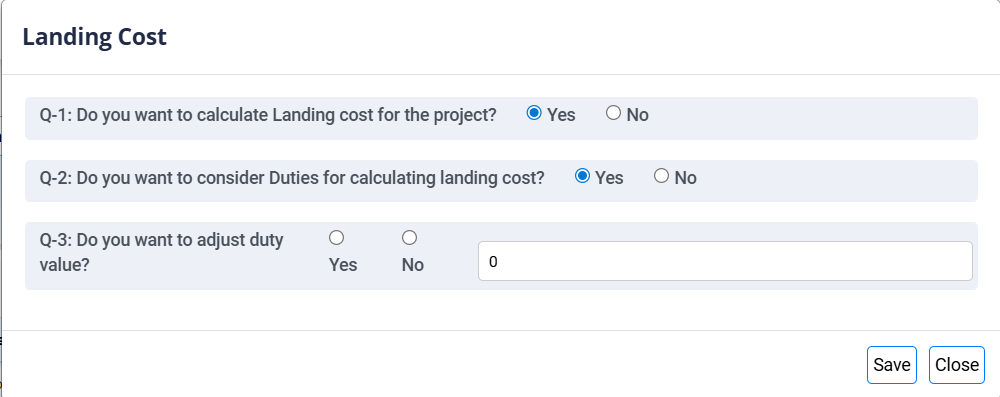
- Landing Cost button: Click this to open the configuration page.
- Step 1: Enable Landing Cost
- Q‑1: Do you want to calculate Landing cost for the project?
- If you select No, no further configuration is needed.
- If you select Yes, the system proceeds to the next question.
- Step 2: Duty Consideration
- Q‑2: Do you want to consider Duties for calculating landing cost?
- If you select Yes, you can then choose whether to adjust the duty value.
- Step 3: Duty Value Adjustment
- Q‑3: Do you want to adjust duty value?
- If Yes, an input field appears for you to enter a specific duty value.
- If No, the system uses the default duty value.
Actions
- Save: Saves the landing cost configuration and project details.
3
Engineer Login
The assigned engineer logs in to their dashboard to view new assignments.
Add Customer
When you click the Add Customer button on the Manager Dashboard, the Add Customer form opens, allowing you to register a new customer in the system.
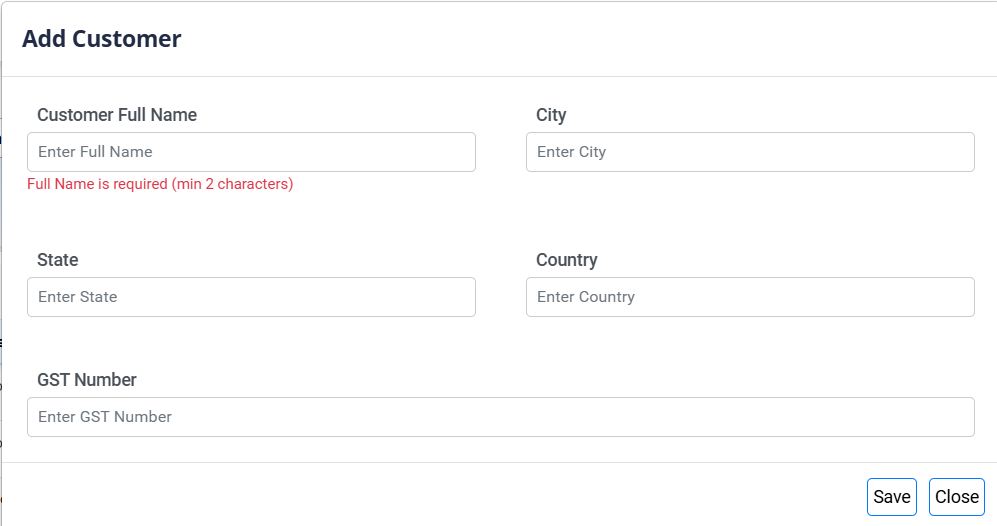
Customer Details
- Customer Full Name: Required field for the customer's full name (must meet the minimum length validation).
- City: City where the customer is located.
- State: State where the customer is located.
- Country: Country where the customer is located.
- GST Number: Customer's Goods and Services Tax (GST) number.
Actions
- Save: Saves the new customer's details to the system.
- Close: Closes the form without saving any changes.