PART ALERT
This page provides a detailed overview of all parts, including their status and other key information. It is designed to help you track part availability and manage your inventory effectively.
Navigation:
How to Reach the Part Alert Page
- In the left navigation panel, click Part Alert
- The main content area loads the Part Alert page.
Summary Cards
At the top of the page, there are three summary cards that provide a quick overview of the current parts list:

The total number of part records being tracked in the table.
The number of distinct internal part numbers in the system.
The number of parts whose status is currently marked as Available.
On the top-right of the page:

- + Add Part: A button that opens the Add Part Number form to register a new part.
Add Part
When you click the + Add Part button, the Add Part Number modal opens. The form is structured into the following sections:
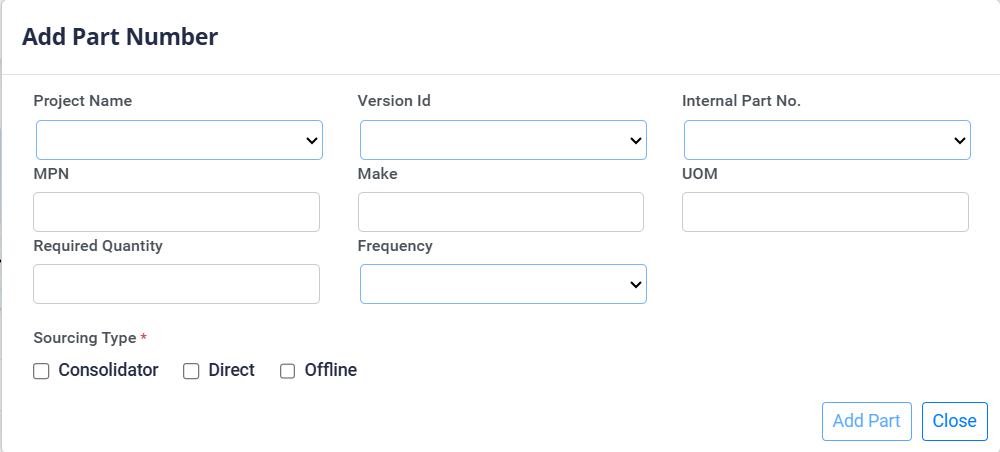
1. Project Information
- PROJECT NAME: A dropdown list to select the target project.
- VERSION ID: A dropdown list to select the specific version of the project.
2. Part Information
- INTERNAL PART NO.: A dropdown list to select the internal tracking number of the part.
- MPN: A text input field to display or input the Manufacturer Part Number.
- MAKE: A text input field to display or input the manufacturer name.
- UOM: A text input field to display or input the Unit of Measure.
3. Specifications
- REQUIRED QUANTITY: A text field to input the necessary amount of parts.
- FREQUENCY: A dropdown list to specify how frequently the data should be refreshed/sought (e.g., Once in a day, Thrice in a day).
4. Sourcing Type *
- Checkboxes to select the sourcing channel(s):
- Consolidator: Sourcing through distributor networks.
- Direct: Sourcing directly from the Original Component Manufacturer (OCM).
- Offline: Procurement managed offline/externally.
Form Actions
- Close (X Icon): Closes the modal without saving.
- Add Part (+ Icon): Validates and saves the part record.
Parts Table
The main section of the page is a sortable table that lists all the parts with the following details. Each column header includes a small arrow that allows you to sort the table by that column.

- Internal Part No.: The unique internal identifier for the part.
- Project Name: The name of the project the part is associated with.
- Version Id: The version ID of the part or project.
- MPN: The Manufacturer Part Number.
- Make: The manufacturer of the part (e.g., TE Connectivity).
- UOM: The Unit of Measure for the part (e.g., EA for 'each').
- Required Quantity: The quantity of the part required.
- Frequency: How often the part is needed (e.g., "Thrice in a day").
- Source Type: The source of the part.
- Created Date: The date and time when the part record was created.
- Status: The current status of the part, typically one of:
- Available – the part is available (usually shown in green).
- Pending – the part is not yet available or is waiting for confirmation.
- Failed – sourcing or availability for the part has failed.
- Action: Icons to perform actions on the part:
- Info (blue circle icon): Opens a detailed view or shows additional information about the part.
- Delete (red bin icon): Deletes the part record from the list (usually after confirmation).