SMARTSYNC
The SmartSync feature allows Source Buddy to align with upstream systems by pulling in project, part, and price data. This ensures that your data remains current and accurate with your primary ERP or planning systems.
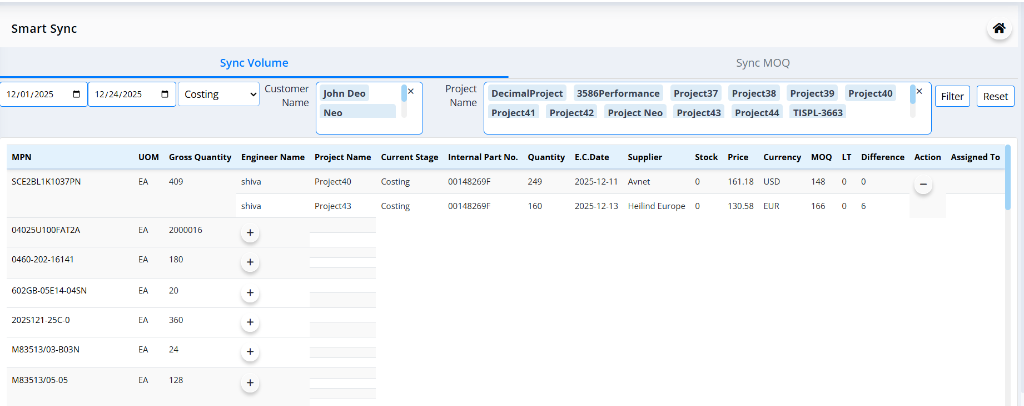
Tabs
The SmartSync page is divided into two main tabs:
- Sync Volume: Synchronize volume and quantity data across projects.
- Sync MOQ: Synchronize Minimum Order Quantity (MOQ) requirements across projects.
Sync Volume
The Sync Volume tab allows you to synchronize volume and quantity data across multiple projects in Source Buddy.
Filter Controls
The interface provides several filtering controls to customize your view:
- From Date: Start date for the filter period (e.g., 06/01/2026).
- To Date: End date for the filter period (e.g., 06/18/2026).
- Select Stage: Filter by project stage (e.g., Costing).
- Customer Name: Type or select a customer name to filter the data.
- Project Name: Displays selected projects as removable tags (e.g., Project76, Project73, Project70, Project69, Project68, Project64, Project61, Project60, Ortecs, Tops, Test-may-14). Click the × on any tag to remove it from the filter.
- Filter: Apply the selected filter parameters to update the table.
- Reset: Clear all filter selections and return to default values.
Column Descriptions
The Sync Volume table displays the following information:
- MPN: Manufacturer Part Number (e.g., CRCW12060000ZSTA, CRCW120649R9FKTA).
- UOM: Unit of Measure (e.g., NO).
- Gross Quantity: Total quantity required across all associated projects (e.g., 28, 8, 4).
- Engineer Name: Name of the engineer assigned to the project (e.g., deepa).
- Project Name: The associated project name (e.g., Project60, Project64).
- Current Stage: The project stage (e.g., Costing).
- Internal Part No.: Internal tracking number for the part (e.g., 400505600161).
- Quantity: Specific quantity required for that project (e.g., 14).
- E.C. Date: Estimated Completion Date (e.g., 2026-06-11, 2026-06-16).
- Supplier: The supplier associated with the part (e.g., Farnell).
- Stock: Current stock level available with the supplier (e.g., 1642).
- Price: Unit price of the part (e.g., 0.04).
- Currency: Currency code for the price (e.g., GBP).
- MOQ: Minimum Order Quantity (e.g., 10).
- LT: Lead Time (e.g., 0).
- Difference: The quantity difference between gross quantity and individual project quantities (e.g., 4).
- Action: A − (minus) button to collapse an expanded MPN row, or a + (plus) button to expand it and view the project-level breakdown beneath.
- Assigned To: The user assigned to the item.
How to Use
- Click on the Sync Volume tab.
- Select the From Date and To Date for the period you want to view.
- Choose the appropriate Stage from the dropdown (e.g., Costing).
- Type or select a Customer Name and choose the relevant Project Name(s). Selected projects appear as tags that can be individually removed.
- Click Filter to apply and update the table.
- Click the + (Action) button on any MPN row to expand and view the project-level breakdown beneath it.
- Click the − (Action) button to collapse an expanded row.
Part Sync Details
When you click on an MPN, the Part Sync view opens, allowing you to view detailed project breakdowns and optimize supplier selection.
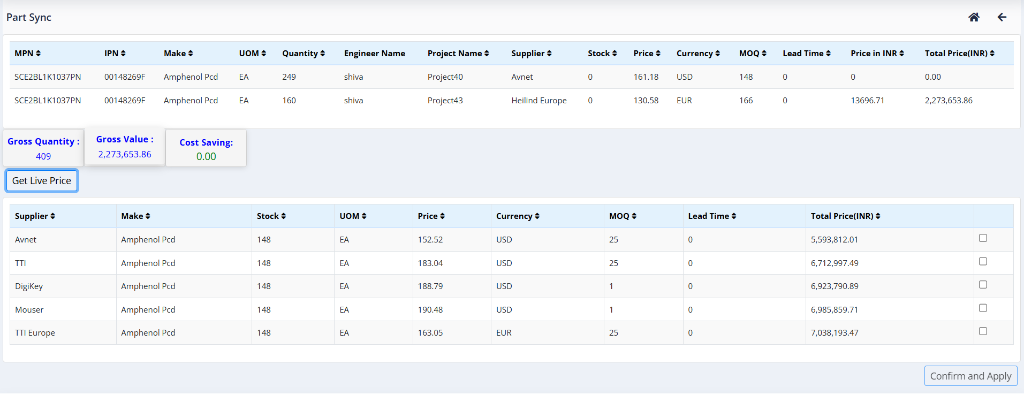
Actions
- View Project Breakdown: The expanded rows display detailed information for each project associated with the MPN, including engineer name, project name, current stage, supplier, price, stock, and quantity difference.
- Get Live Price: Click the Get Live Price button to fetch real-time pricing and availability from connected suppliers.
- Select Supplier:
- A list of suppliers will appear in the bottom table.
- Review the Price, Stock, and Total Price.
- Select the checkbox for the preferred supplier to see potential Cost Savings.
- Confirm and Apply: Click the Confirm and Apply button to finalize the supplier selection for the consolidated quantity.
Sync MOQ
The Sync MOQ tab allows you to synchronize Minimum Order Quantity (MOQ) requirements across projects in Source Buddy.

Filter Controls
The interface provides several filtering controls to customize your view:
- From Date: Start date for the filter period (e.g., 06/01/2026).
- To Date: End date for the filter period (e.g., 06/18/2026).
- Select Stage: Filter by project stage (e.g., Costing).
- Customer Name: Displays selected customers as removable tags (e.g., Test, Idofthings, TATA, Zentron Labs). Click × to remove a customer from the filter.
- Project Name: Displays selected projects as removable tags (e.g., Project76, Project73, Project70, Project69, Project68, Project64, Project61, Project60, Ortecs, Tops, Test-may-14). Click × to remove a project from the filter.
- Filter: Apply the selected parameters to update the table.
- Reset: Clear all filter selections and return to default values.
- Fetch MOQ: Retrieve the latest MOQ data from suppliers for the filtered selection.
Column Descriptions
The Sync MOQ table displays the following information:
- Manufacturing Part No: Manufacturer Part Number (e.g., D38999/33W21R, UUL1H2R2MCL1GS).
- Internal Part No: Internal tracking number for the part (e.g., 462701700722, 406005102752).
- Required Quantity: The quantity required for the project (e.g., 34, 1, 2).
- Project Name: The associated project name (e.g., Project69, Project73, Project60).
- Selected Supplier: The supplier currently selected for the item (e.g., DigiKey, Onlinecomponents.com, TTI).
- Stock: Current stock availability with the supplier (e.g., 508, 7711, 1998000).
- Price: Unit price of the part (e.g., 30.95, 0.22, 0.05).
- Currency: Currency code for the price (e.g., USD).
- Converted Price: Price converted to the base currency (e.g., 2930.97, 21.23, 2.47).
- SPQ: Standard Pack Quantity (e.g., 50, 2000, 8000).
- MOQ: Minimum Order Quantity (e.g., 5, 2000, 8000).
- QuantityDiff: Difference between the MOQ and the required quantity (e.g., 16, 1999, 7998).
- Total Cost: Total cost for the required quantity (e.g., 99652.98, 21.23, 2.47).
- MOQ Cost: Total cost based on MOQ requirements (e.g., 46895.52, 42438.77, 37047.53).
- Checkbox: Select individual rows for further processing or bulk actions.
How to Use
- Click on the Sync MOQ tab.
- Select the From Date and To Date for the period you want to view.
- Choose the appropriate Stage from the dropdown (e.g., Costing).
- Select Customer Name(s) and Project Name(s) — selected values appear as removable tags.
- Click Filter to apply the parameters and update the table.
- Click Fetch MOQ to retrieve the latest MOQ data from suppliers.
- Review the MOQ, QuantityDiff, Total Cost, and MOQ Cost columns to identify items needing attention.
- Use the checkboxes on the right to select individual rows for further processing.