OVERVIEW
The Overview page under the Dashboard gives managers a consolidated view of all projects, their key dates, and current stages. It helps you quickly understand workload, risk, and progress across projects.
Navigation
- In the left navigation panel, under Dashboard, click Overview
- Path:
Dashboard → Overview.
- Path:
- The main content area loads the Overview page.
Tabs
At the top of the page, the dashboard categorizes projects into two primary stages:
- Costing: Displays projects currently in the costing phase, along with a count of active projects.
- Procurement: Displays projects in the procurement phase, along with a count of active projects.
Filters and Quick Actions

Filters
Use these controls to filter and search the project list:
- Search Project: Text search box to find a project by name or ID.
- Customer: Dropdown to filter by customer.
- Engineer: Dropdown to filter by assigned sourcing engineer.
- Stage: Dropdown to filter by workflow stage.
- ECD: Date selector button for the Estimated Completion Date.
- RFQ: Date selector button for the Request for Quotation date.
- Reset: Resets all filters back to the default view.
Action Buttons
On the right of the filters row, two quick-creation buttons are available:
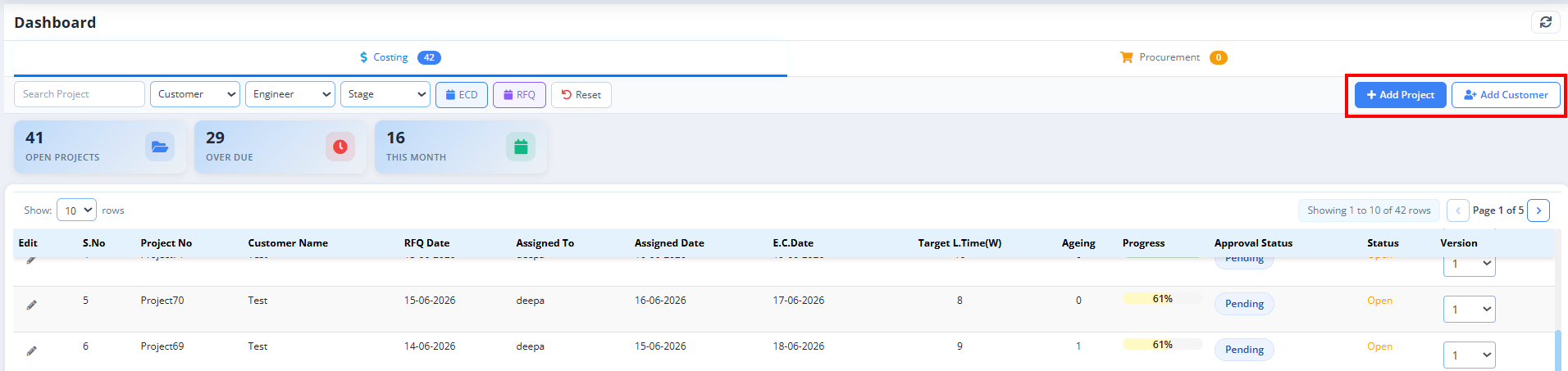
- + Add Project: Opens a dialog to create a new project.
- + Add Customer: Opens a dialog to add a new customer.
Summary Cards
Below the filters row, three metric cards show consolidated counts based on the active selection:
- OPEN PROJECTS: Total number of currently active, open projects.
- OVER DUE: Number of projects that have exceeded their target dates or deadlines.
- THIS MONTH: Count of projects created or scheduled for completion within the current calendar month.
Projects Table
The main section displays the project records matching the active filters and stage.

Column Descriptions
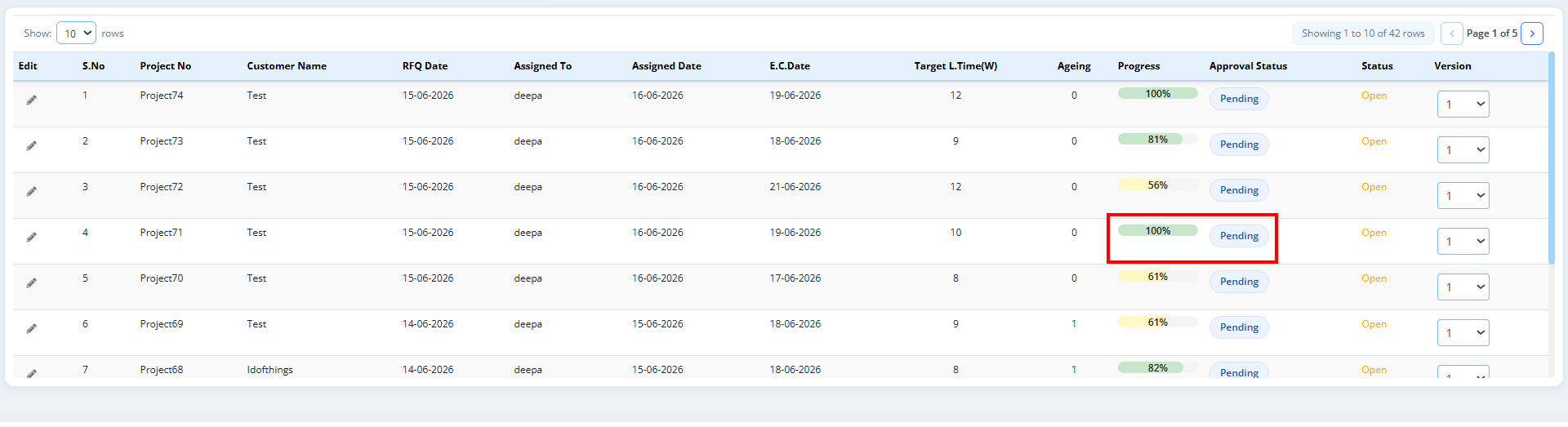
- Edit: Click the pencil icon to modify the project settings or details.
- S.No: Serial number of the row.
- Project No: Unique identifier code of the project (e.g.,
Project69). - Customer Name: The customer associated with the project.
- RFQ Date: Date when the Request for Quotation was registered.
- Assigned To: Sourcing engineer assigned to the project.
- Assigned Date: Date when the project was assigned.
- E.C.Date: Estimated Completion Date.
- Target L.Time(W): Sourcing target lead time in weeks.
- Ageing: Total days the project has been open. Values turn red when ageing becomes critically high.
- Progress: A visual progress bar showing completion percentage.
- Approval Status: Sourcing approval state (e.g.,
Pendingbadge). - Status: Sourcing status of the project (e.g.,
Open,Closed). - Version: A dropdown to select or view different project versions.
Sourcing Approval Workflow
Once a project reaches 100% Progress, it enters the approval sequence. The workflow transitions through the following stages:
1. Engineer Submission
- Progress: When the progress bar shows 100% complete for the project the concerned engineer can click the Approval Status button (typically labeled
Pending).
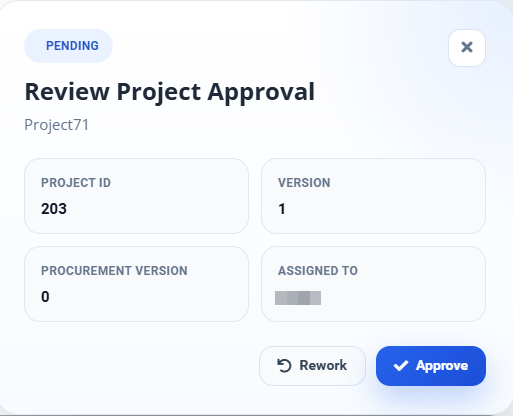
- Dialogue Details: A modal dialogue box opens, displaying the key metadata:
- Project ID (e.g.,
Project ID: 203) - Version (e.g.,
Version: 1) - Procurement Version (e.g.,
Procurement Version: 0) - Assigned To (e.g.,
Assigned To: XXXX)
- Project ID (e.g.,
- Actions: The dialogue presents two action buttons:
- Approve: Promotes the project to the Manager for review.
- Rework: Sends it back for local engineering revisions.
2. Manager Review & Feedback
- Notification: Upon submission, the manager receives a notification of the pending review.
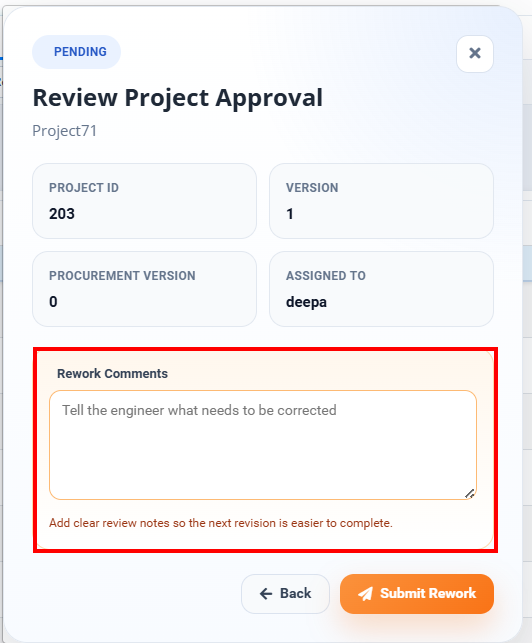
- Review Decision:
- Approve: If satisfied, the manager approves the project to close the costing phase.
- Rework: If corrections are required, the manager can select rework, add rework comments, and send the project back to the engineer to address.
3. Transition to Procurement
- Final Approval: Once approved by the manager, the project is moved out of the costing queue.
- Next Stage: The project is moved to the Procurement phase, and its status is updated to Open under the Procurement tab, ready for the next execution stage.