CURRENCY CONVERSION
The Currency Conversion page provides a comprehensive list of exchange rates used within Source Buddy. This data is crucial for accurate cost calculations and financial reporting across different currencies.
Navigation
To access the Currency Conversion page:
- Navigate to Master Data in the sidebar.
- Click on Currency Conversion.
Page Overview
The interface contains the following components:
- Currencies Tab: Displays the total number of active currencies configured (e.g., 7 Currencies).
- Uploads Tab: Displays the history or count of conversion rate files uploaded (e.g., 2 Uploads).
Actions
The following actions are available in the header:
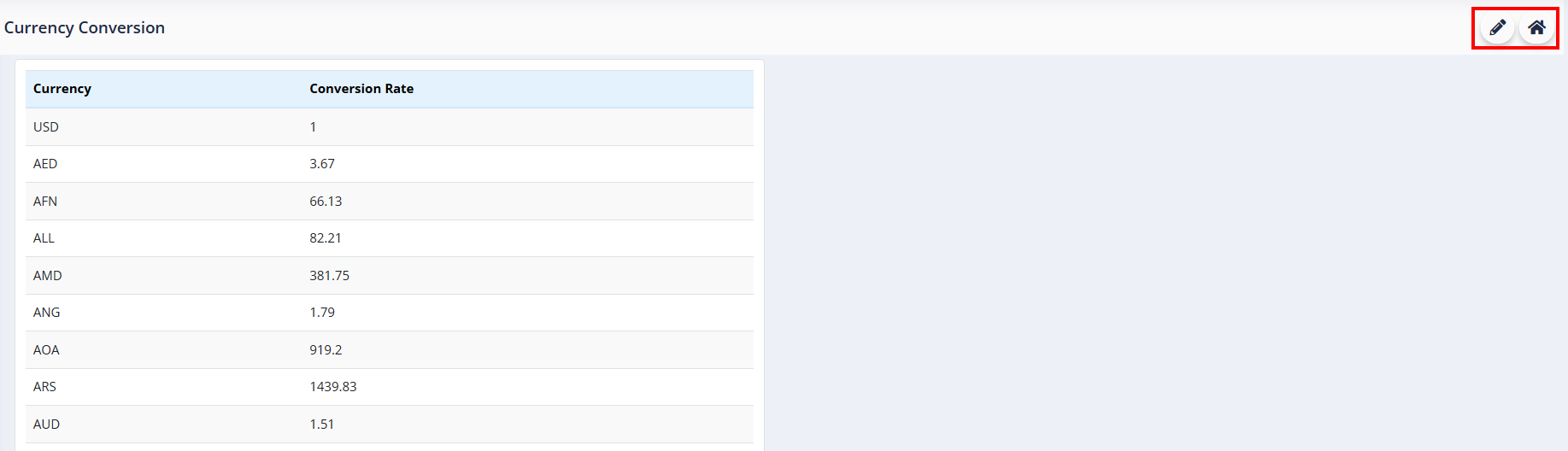
- Upload: Allows you to upload currency conversion rates (typically via a template spreadsheet).
- Home (House Icon): Redirects you to the main dashboard.
Upload Currency Data
To upload or update currency conversion rates, click the Upload button in the header. This opens the Upload Currency Data modal.
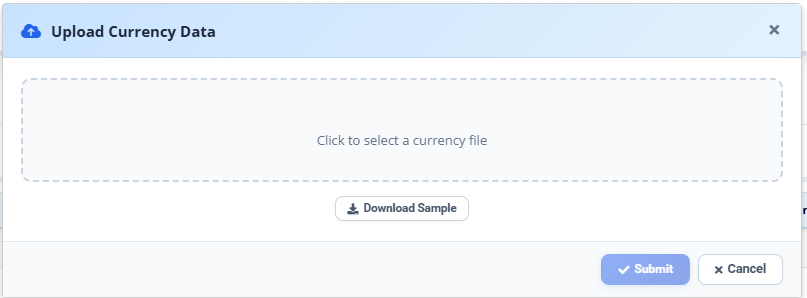
Steps to Upload:
- Download Sample (Optional): Click on Download Sample to download the template file in the correct format.
- Select File: Click on the dotted drop-zone area (Click to select a currency file) to choose your prepared currency file from your computer.
- Submit: Click Submit to process and save the exchange rates.
- Cancel: Click Cancel (or the X icon in the header) to close the modal without saving changes.
Column Descriptions
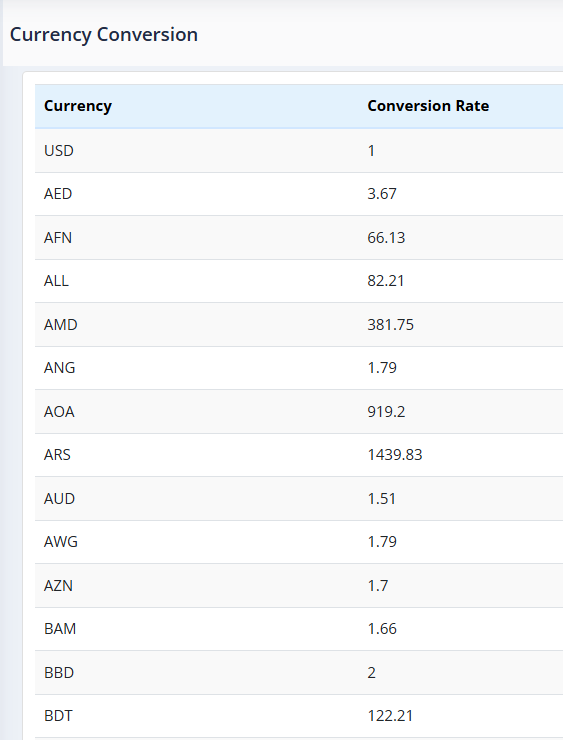
- Currency Code: The standard code representing the source currency (e.g., USD, EUR, GBP).
- To Currency: The target base currency for conversion (e.g., INR).
- Conversion Rate: The exchange rate of the source currency against the target base currency.