MAIL TEMPLATE
When you navigate to the Email Template section, you are presented with a list of all existing email templates. This page allows you to manage, view, and create new templates.
Navigation
To access the Email Templates:
- Navigate to Master Data in the sidebar.
- Click on Mail Template.
Template List
The main view is a table that displays all the saved email templates with the following details:
- Template ID: The unique identifier for the template (e.g., "XXXXX_Template").
- Category: The category the template belongs to (e.g., "RFQ").
-
Actions: A set of icons to perform actions on each template:
- Edit: An icon to modify the template.
- Info: An icon to view more details about the template.
- Delete: An icon to delete the template.
Above the table, you have options to filter the list and add new templates:
- All Categories: A dropdown to filter the templates by a specific category.
- + New Template: A button that opens the "Add New Template" page, allowing you to create a new email template.
Add New Template
This guide explains how to create and configure new email templates using the "Add New Template" page. This feature allows you to design dynamic email templates that can be populated with data from your collections.
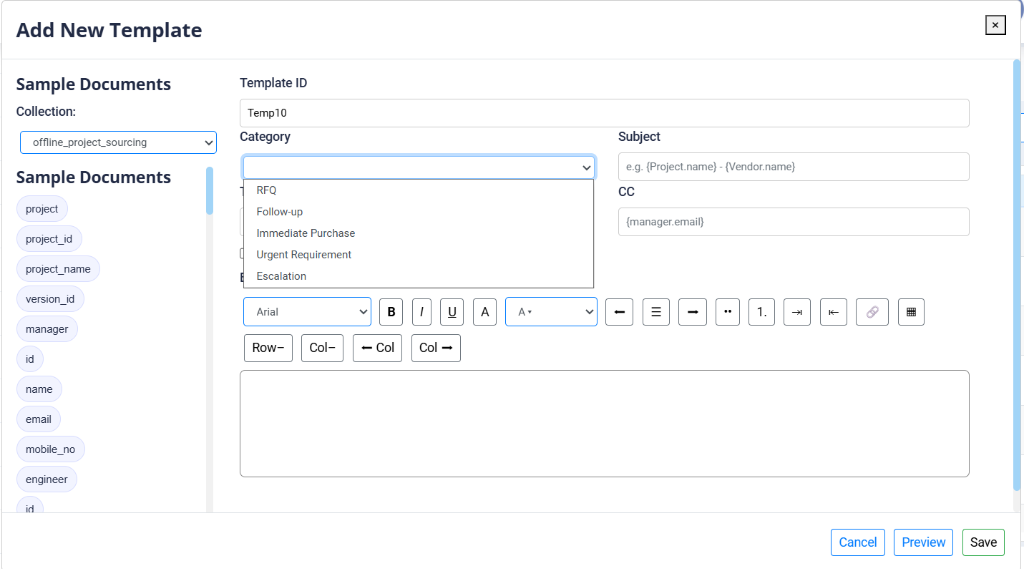
Sample Fields
The left side of the page features a configuration panel to assist in building the template:
- Collection: This dropdown allows you to select a data source collection (e.g.,
offline_project_sourcing). The data from the selected collection provides the variables for the email. - Sample Fields: Below the dropdown, the available fields are displayed as pills (e.g.,
project,project_id,project_name,version_id,manager,id,name,email,mobile_no). These fields can be used as dynamic placeholders in your template.
Template Configuration
The main form on the page is used to configure and build the email template:
- Template ID: A unique identifier for the template (e.g.,
Temp5). - Category: A dropdown to assign the template to a specific category (e.g., RFQ, Follow-up, Immediate Purchase, Urgent Requirement, Escalation).
- Subject: The subject line for the email. Dynamic placeholders can be used (e.g.,
{Project.name} - {Vendor.name}). - To: The primary recipient's email address field (e.g.,
{vendor.email}). - CC: The carbon copy recipient's email address field (e.g.,
{manager.email}). - Attachment Required: A checkbox to indicate whether a file attachment is mandatory for the email.
Body Editor
A rich text editor is provided for designing the email content:
- Supports HTML: Allows you to write the email body using standard text or custom HTML layout.
- Formatting Tools: The toolbar includes font selection (Arial, etc.), styling controls (Bold, Italic, Underline, Text Color, Background Color, Size), paragraph formatting (alignments, indentation, lists), and table creation tools.
Action Buttons
At the bottom of the page, the following options are available:
- Cancel: Discards the template and closes the dialog.
- Preview: Displays a preview of the email with sample data.
- Save Template: Saves the configured template to the system.