INTERNAL PART INFORMATION
The Internal Part Information screen provides a detailed view of a specific part, including supplier options, pricing, and stock availability.
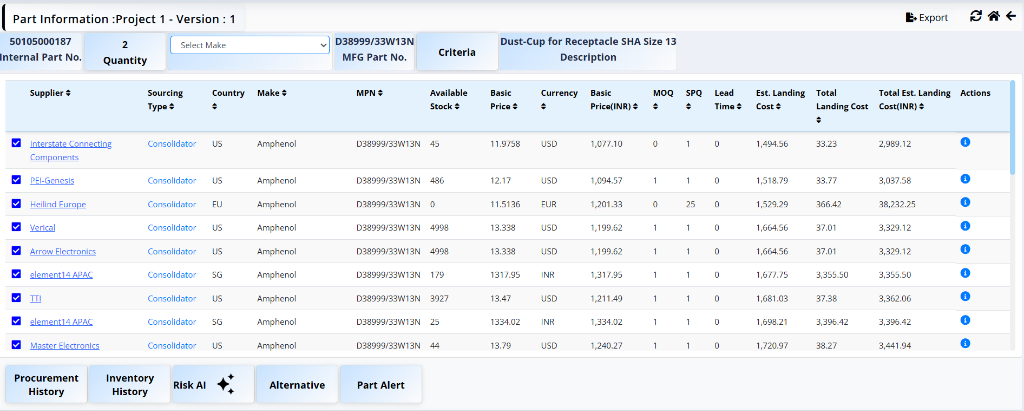
Header Details
- Internal Part No: Unique identifier for the part (e.g., 50105000187).
- Quantity: Required quantity for the project (e.g., 2).
- Make: can select the Manufacturer name from the dropdown list .
- MFG Part No: Manufacturer Part Number.
- Criteria: Button to view the selected criteria.
- Description: Description of the part (e.g., Dust-Cup for Receptacle SHA Size 13).
Suppliers Table
The table lists available suppliers for the part with the following details:
- Supplier: Name of the supplier (e.g., Interstate Connecting Components, PEI-Genesis).
- Sourcing Type: Type of sourcing (e.g., Consolidator).
- Country: Country of the supplier (e.g., US, EU).
- Make: Manufacturer name.
- MPN: Manufacturer Part Number.
- Available Stock: Quantity available in stock.
- Basic Price: Unit price of the part.
- Currency: Currency of the basic price (e.g., USD, EUR).
- Basic Price(INR): Unit price converted to INR.
- MOQ: Minimum Order Quantity.
- SPQ: Standard Pack Quantity.
- Lead Time: Estimated lead time in days/weeks.
- Est. Landing Cost: Estimated landing cost per unit.
- Total Landing Cost: Total landing charges.
- Total Est. Landing Cost(INR): Total estimated cost in INR.
-
Actions: Info icon to view more details.
- Click on that info icon it will take you to a different screen with all the price details.
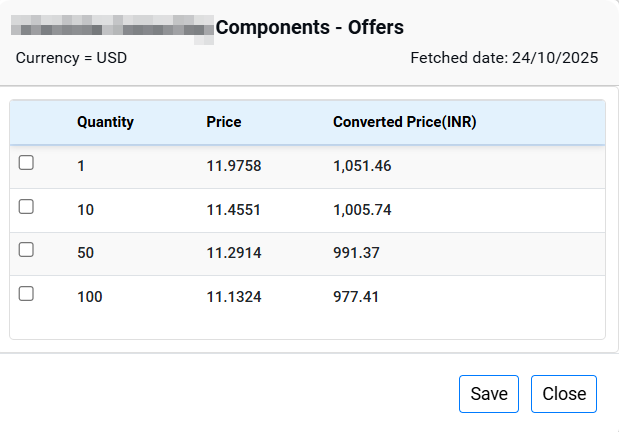
Engineer can change the price and MOQ here.
Additional Actions
Below the table, you can access further insights and tools for the selected part:

Procurement History
Displays a historical record of all purchases for this part, including past suppliers, prices paid, and order dates.
Inventory History
Shows tracking of stock levels over time to identify usage patterns and shortages.
Risk AI
AI-powered assessment evaluating supply-chain risk including availability, lead-time & price volatility.
Alternative
Provides a list of potential substitute parts in case the main part is unavailable.
Part Alerts
Displays alerts like EOL, PCN, compliance or critical notifications.
Icons
The top right corner of the screen provides quick access to common actions:

- Export: Export the current part information and supplier data to a file (e.g., Excel, CSV).
- Refresh: Reload the page to fetch the latest data and updates.
- Home: Navigate back to the main dashboard or landing page.
- Back: Return to the previous screen. (e.g., Project Details page).
Send RFQ
Once the engineer has finalized the supplier and pricing details, they can initiate the Request for Quotation (RFQ) process for unsourced parts to obtain quotations from offline vendors.
Click on the Send RFQ button located in the top right corner to proceed with sending the RFQ to selected suppliers.
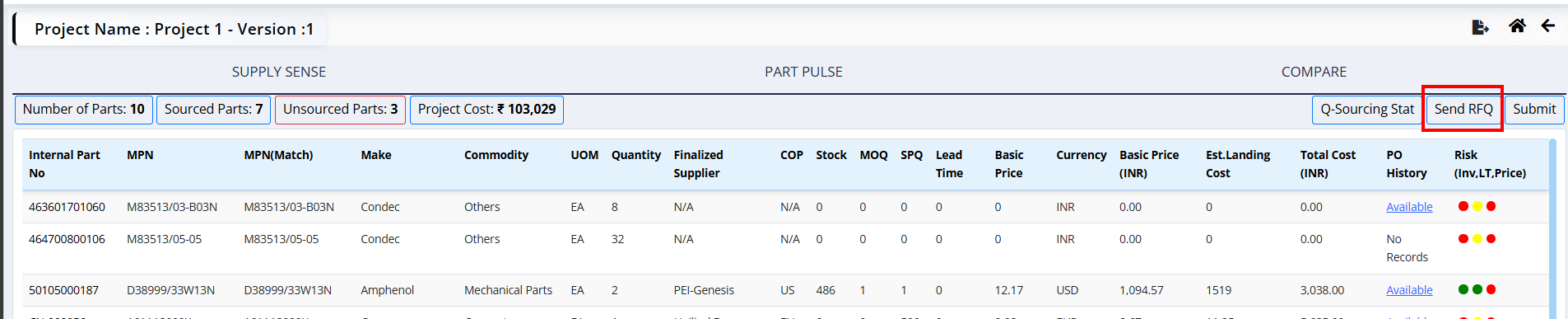
Send RFQ
Request for Quotation is generated and sent to selected vendors.