Q SOURCING STAT
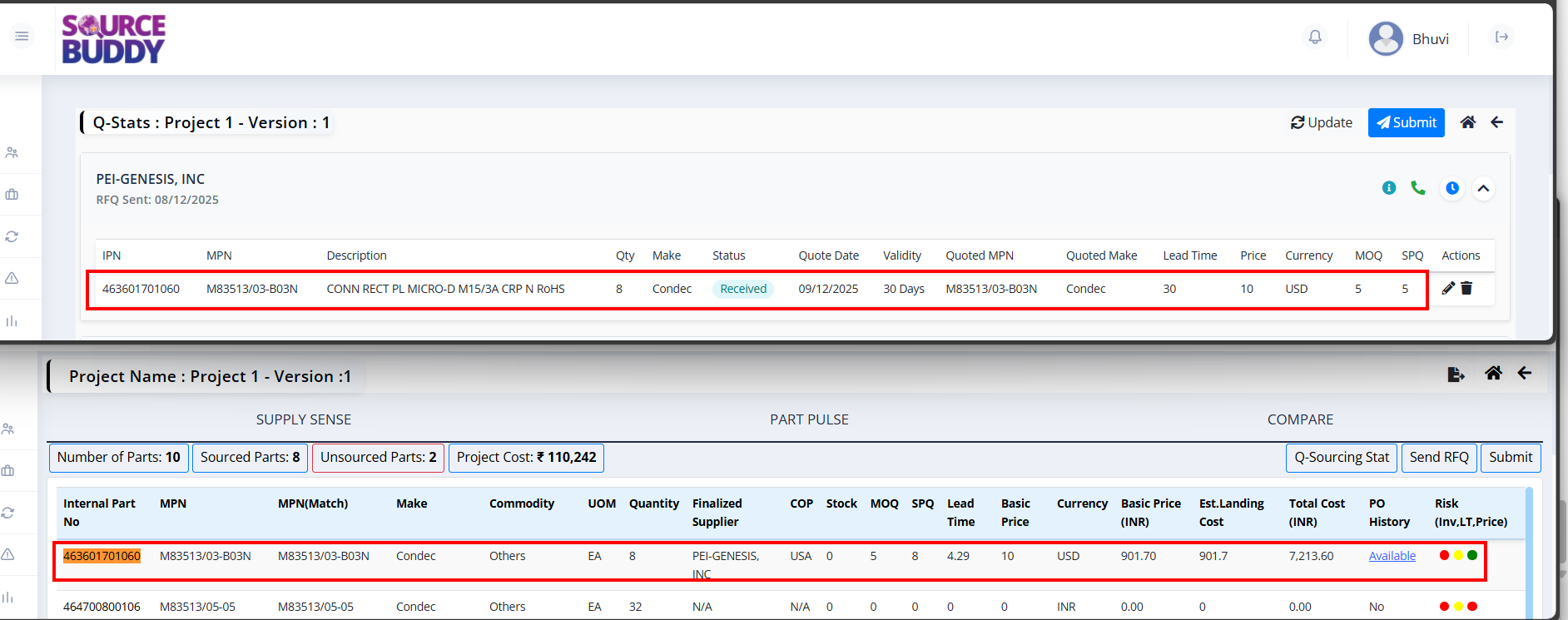
The Q Sourcing Stat page provides a detailed overview of the RFQ status for each supplier. It allows engineers to track responses, view quoted prices, and manage supplier interactions.

Page Header
- Project Name & Version: Displays the current project name (e.g., "Project 1") and version number (e.g., "Version : 1") at the top left.
- Global Actions:
- Update: Refreshes the data to show the latest updates.
- Submit: Submits the finalized quotes for approval or further processing.
- Home Icon: Navigates back to the main dashboard.
- Back Arrow: Returns to the previous page.
Supplier List
The main view lists all suppliers to whom the RFQ was sent. Each supplier row contains:
- Vendor Name: The name of the supplier (e.g., PEI-GENESIS, INC).
- RFQ Sent Date: The date when the RFQ was sent (e.g., 08/12/2025).
- Status Icons:
- Info (i): View additional supplier details.
- Phone: Contact information.
- Timer: Indicates response time or deadline status.
- Expand/Collapse (Arrow): Click the arrow to view or hide the detailed list of parts sent to this supplier.

- IPN: Internal Part Number (e.g., 463601701060).
- MPN: Manufacturer Part Number (e.g., M83513/03-B03N).
- Description: Brief description of the part.
- Qty: Quantity requested.
- Make: Preferred manufacturer.
- Status: Current status of the quote (e.g., "Pending").
- Quote Date: Date the quote was received.
- Validity: Validity period of the quote (in days).
- Quoted MPN: The actual MPN quoted by the supplier.
- Quoted Make: The manufacturer of the quoted part.
- Lead Time: Delivery lead time.
- Price: Unit price quoted.
- Currency: Currency of the quote.
- MOQ: Minimum Order Quantity.
- SPQ: Standard Package Quantity.
- Actions: Edit (Pencil): Update quote details manually.
Delete (Trash): Remove this item from the quote.
Edit Quote Attributes
Clicking the Edit (Pencil) icon on a specific part row allows you to modify the quote details directly within the table.

Editable Fields:
- Status: Change the status of the quote.
- Pending: Default status when the RFQ is sent but no quote has been received yet.
- Quoted: Select this status when pricing, availability, and other details have been entered.
- Abandoned: Use this status if the supplier declines to quote or if the part is no longer needed from this specific supplier.
- Quote Date: Select the date the quote was received.
- Validity: Enter the number of days the quote is valid.
- Quoted MPN: Enter the MPN provided by the supplier if different.
- Quoted Make: Enter the manufacturer name for the quoted part.
- Lead Time: Enter the delivery lead time (in days or weeks).
- Price: Enter the unit price.
- Currency: Select the currency.
- MOQ: Enter the Minimum Order Quantity.
- SPQ: Enter the Standard Package Quantity.
Actions:
- Save (Green Disk Icon): Click to save the changes made to the row.
- Cancel (Red X Icon): Click to discard changes and revert to the previous data.
Automatic Updates
Once the quote status is updated in the Q Sourcing Stat tab, the part information is automatically reflected in the Project Details page. The Unsourced Parts count will also update accordingly whenever engineers modify the quote status.