ENGINEERS DASHBOARD
The Engineers Dashboard presents a similar layout but is focused on the projects and tasks assigned to the logged‑in engineer.
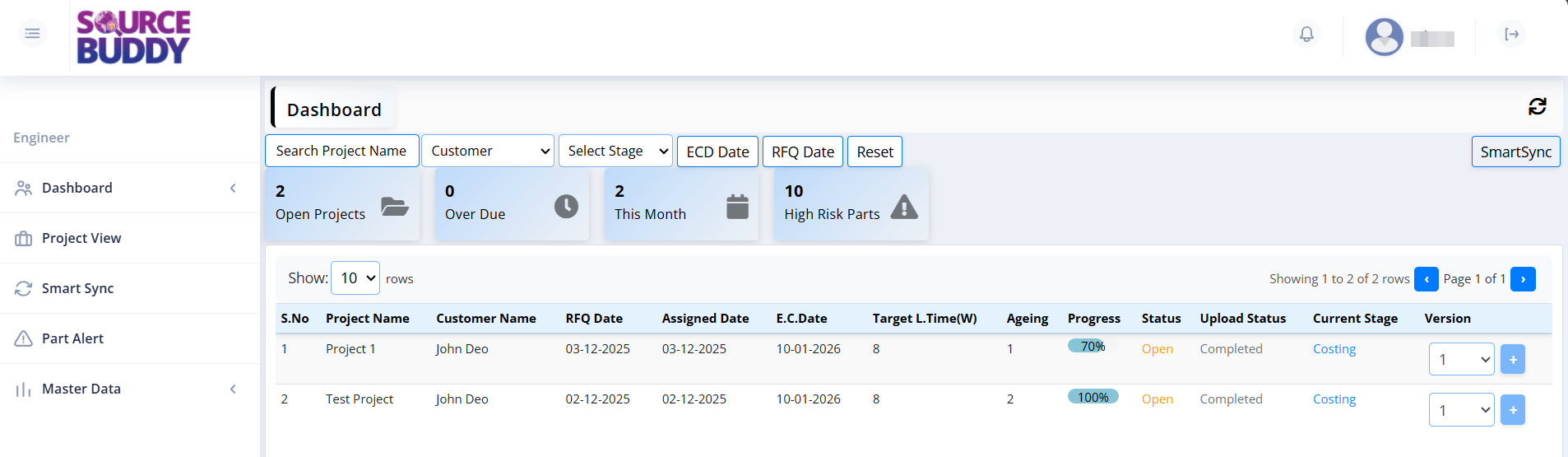
Header
- Refresh – A circular arrow icon on the top-right to refresh and reload the latest data.
- SmartSync – A button on the right side of the filter row that can be used (when enabled) to synchronise data from the source system.
Dashboard Summary & Filters

- Search Project Name – A text input field that allows you to search for specific projects by entering their name or ID. The list updates in real-time as you type.
- Customer – A dropdown menu to filter the project list by a specific customer. Selecting a customer will show only projects associated with them.
- Select Stage – A dropdown menu to filter projects based on their current workflow stage (e.g., Costing, Design, Production).
- ECD Date – A date picker to filter projects by their Estimated Completion Date.
- RFQ Date – A date picker to filter projects by their Request for Quotation date.
- Reset – A button that clears all applied filters and restores the default view of all open projects.
- Open Projects – Summary card showing the engineer's total open projects (e.g., 2).
- Over Due – Summary card showing overdue projects (e.g., 0).
- This Month – Summary card indicating work or projects in the current month (e.g., 2).
- High Risk Parts – Summary card showing the count of high-risk parts (e.g., 10).
Projects List

When projects are assigned, engineers see a table with the following columns:
- S.No – The serial number indicating the row position in the current view of the projects table.
- Project Name – The unique name or identifier assigned to the project (for example,
LT-0011), which serves as the primary reference for tracking. - Customer Name – The name of the client or customer for whom the project is being executed (for example,
Robotics). - RFQ Date – The date on which the Request for Quotation (RFQ) was received from the customer, marking the official start of the project inquiry.
- Assigned Date – The date when the project was officially assigned to the current engineer, indicating when they became responsible for its execution.
- E.C. Date – Estimated Completion Date; the target date by which the project is expected to be finished and delivered.
- Target L.Time (W) – Target Lead Time in weeks, representing the expected duration to complete the project from start to finish.
- Ageing – The number of days elapsed since the project was assigned to the engineer, helping to identify how long the project has been in progress and potential delays.
- Progress – A visual progress bar or percentage indicating how much of the project work has been completed.
- Status – The current operational status of the project (for example,
Open,Closed,On Hold), showing whether the project is actively being worked on. - Upload Status – Indicates the status of
Uploads
for the project (for example,
Completed,Pending,In Progress), showing whether required files and information have been uploaded. - Current Stage – The specific phase of the project lifecycle (for example,
Costing,Design,Production), indicating which workflow stage the project is currently in. - Version – The revision number of the project, used to track changes and updates over time as the project evolves.
- Plus Icon – Clicking the plus icon increments the version number. To create a new version of the project, click the plus icon; to confirm and proceed with the new version, click the checkmark icon.
- Checkmark Icon – Clicking the checkmark icon confirms and proceeds to the new version of the project.
4
Sourcing & Upload
Engineer selects BOM, defines criteria, selects sources, and uploads the data.