ENGINEERS DASHBOARD
The Engineers Dashboard presents a similar layout but is focused on the projects and tasks assigned to the logged‑in engineer.
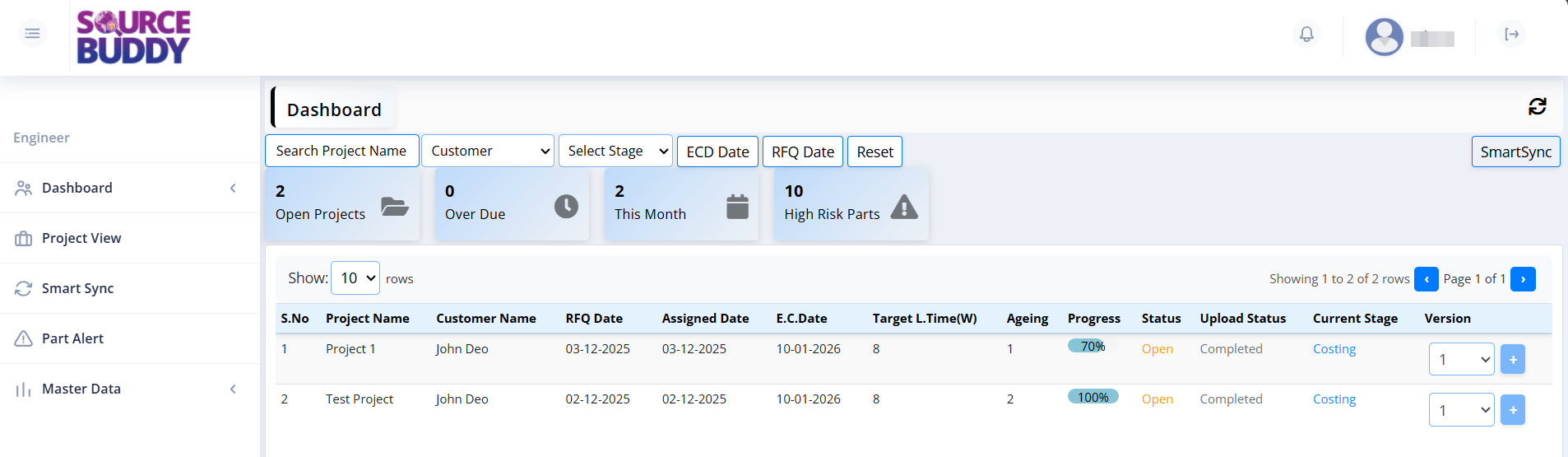
Header
- Refresh – A circular arrow icon on the top-right to refresh and reload the latest data.
- SmartSync – A button on the right side of the filter row that can be used (when enabled) to synchronise data from the source system.
Dashboard Summary & Filters

- Search Project Name – A text input field that allows you to search for specific projects by entering their name or ID. The list updates in real-time as you type.
- Customer – A dropdown menu to filter the project list by a specific customer. Selecting a customer will show only projects associated with them.
- ECD Date – A date picker to filter projects by their Estimated Completion Date.
- RFQ Date – A date picker to filter projects by their Request for Quotation date.
- Reset – A button that clears all applied filters and restores the default view of all open projects.
- Open Projects – Summary card showing the engineer's total open projects (e.g., 2).
- Over Due – Summary card showing overdue projects (e.g., 0).
- This Month – Summary card indicating work or projects in the current month (e.g., 2).
Projects List

When projects are assigned, engineers see a table with the following columns:
- S.No – The serial number indicating the row position in the current view (e.g., 1, 2, 3).
- Project Name – The unique name or identifier assigned to the project (e.g., Project78, Project77).
- Customer Name – The name of the client or customer for whom the project is being executed (e.g., TATA, Test).
- RFQ Date – The date on which the Request for Quotation was received from the customer (e.g., 16-06-2026).
- Assigned Date – The date when the project was officially assigned to the engineer (e.g., 17-06-2026).
- E.C. Date – Estimated Completion Date — the target date by which the project is expected to be finished (e.g., 20-06-2026).
- Target L.Time(W) – Target Lead Time in weeks — the expected duration to complete the project (e.g., 12, 9, 8).
- Ageing – The number of days elapsed since the project was assigned. Displayed in red when overdue (e.g., 1, 2).
- Progress – A color-coded progress bar showing the percentage of work completed:
- Green – High completion (e.g., 100%).
- Yellow – Partial completion (e.g., 56%).
-
Upload Status – Indicates the status of Uploads for the project. Possible values include:
- Completed – All required files have been successfully uploaded.
- PartialSuccess – Some files were uploaded but not all required uploads are complete.
-
Approval Status – The current approval state of the project displayed as a text link (e.g., Pending).
- Project Status – The current operational status of the project, color-coded for quick identification (e.g., Open in orange).
- Version – A dropdown showing the current revision number of the project, used to track changes over time (e.g., 1).
- Plus icon – Click the + button next to the version dropdown to create a new version of the project.
4
Sourcing & Upload
Engineer selects BOM, defines criteria, selects sources, and uploads the data.