PROJECT DETAILS
The Project Details page provides a comprehensive view of a specific project, allowing engineers to manage parts, view sourcing status, and analyze costs.
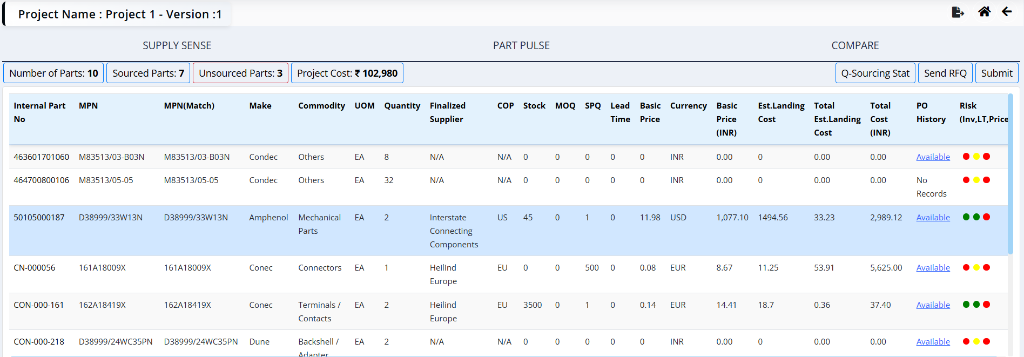
Header Information
- Project Name: The name of the project (e.g., Project77).
- Version: The current version of the project (e.g., Version 1).
Tabs
The page is divided into three main tabs:
- Source Board: Provides visual analytics and charts to assess project data distribution and trends.
- Supply Sense: Shows detailed part information and sourcing status.
- Compare: Allows side-by-side comparison of different costing scenarios or project versions.
Source Board
The Source Board tab provides an analytical view of the project data through visual charts and tables. This helps engineers quickly assess the distribution of parts, sourcing strategy, cost breakdown, and potential risks.
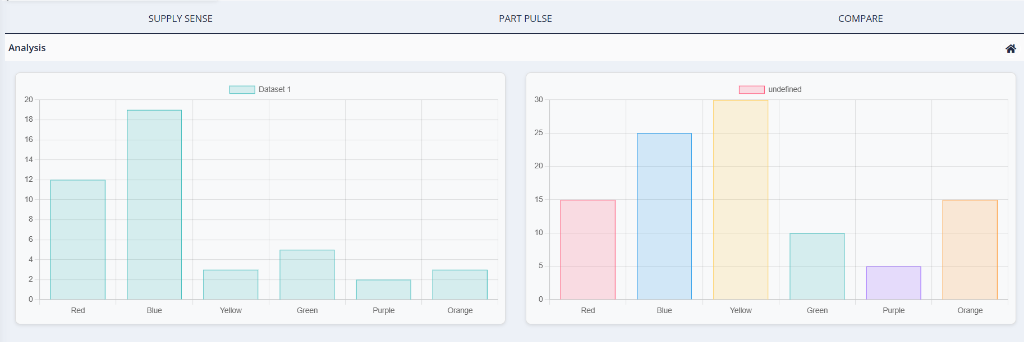
Analysis
The Analysis section features interactive charts and tables that provide a comprehensive overview of the project:
- Project Overview: A summary of high-level project metrics displayed as KPI cards at the top of the page, including:
- Completion %: The overall project completion percentage (e.g., 100%).
- Total Parts: The total number of parts in the project (e.g., 1).
- Closed Parts: The number of parts that have been closed/finalized (e.g., 1).
- Total Cost: The aggregated total cost across the project (e.g., 39).
- Currency Distribution: A donut chart displaying the cost distribution broken down by currency, giving a clear view of multi-currency spend across the project (e.g., 38.76 USD).
- Key Vendors: A table listing the primary vendors involved in the project, showing each vendor's name, their total contribution by value, and the count of parts they supply (e.g., Newark — Value: 39, Count: 1).
- Project History and Considerations: A panel displaying key project notifications and history. When no events have been recorded, it shows "No notifications available for this project."
- Offline vs Online: A bar chart comparing the volume of offline versus online sourcing for the project (e.g., 0 offline, 1 online).
- Payment Terms: A table showing the payment terms associated with the project, including the term name, value, and percentage (e.g., NULL_PAYMENT_TERM — Value: 38.76).
- Part / LT: A table displaying parts alongside their lead times (LT). This table may be empty if no lead time data has been recorded.
- Part Deviation (INR): A table highlighting parts where the considered price deviates from the minimum available price, helping engineers identify cost-saving opportunities. Columns include Part, Deviation (INR), Considered price, Minimum Price, and Minimum Price PO (e.g., deegtfik01 — Deviation: 0, Considered: 1.04, Minimum Price: 1.04, Minimum Price PO: NA).
- Quantity Diff: A table surfacing discrepancies between required quantities and quantities available or ordered, flagging parts that may need attention. Columns include Part, Supplier Name, Required Qty, Available Qty, and Quantity Diff.
Supply Sense
The Supply Sense tab acts as the central hub for managing the project's bill of materials (BOM). It provides a detailed breakdown of all parts, their current sourcing status, and associated costs. This view enables engineers to track which parts are sourced, identify pending items, and make informed decisions based on supplier data and risk assessments.
Summary Metrics
At the top of the Supply Sense tab, you can see key metrics:

- Parts: Total number of parts in the project (e.g., 1).
- Sourced: Number of parts that have been sourced (e.g., 1).
- Unsourced: Number of parts pending sourcing (e.g., 0).
- Project Cost: Total cost of the project in INR (e.g., ₹ 39).
Clicking on any of the summary metric cards (e.g., Sourced, Unsourced) will filter the data table below to display only the relevant parts matching that category.
Actions
The following action buttons are available in the top-right area of the Supply Sense tab:
- Refresh: Reloads the latest data for the project.
- Q-Sourcing: View Q-sourcing stat.
- Send RFQ: Initiate the Request for Quotation process.
- Submit: Submit the project for approval.
Data Table
The table lists all parts associated with the project. Key columns include:
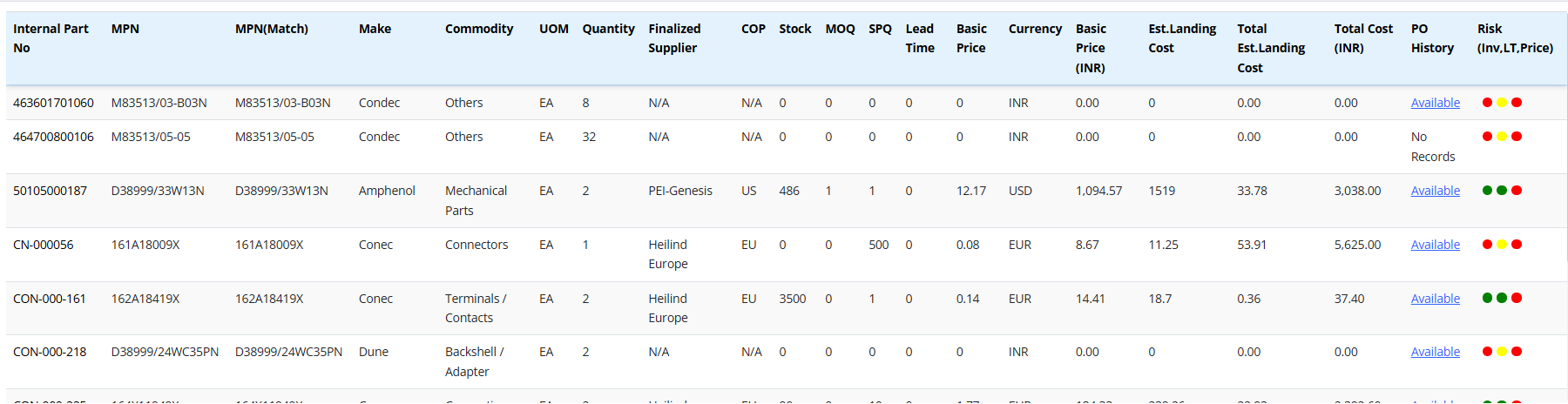
- Internal Part No: The unique alphanumeric identifier assigned to the part within the internal system for tracking and inventory purposes. Clicking this link navigates to a detailed part information screen.
- MPN: Manufacturer Part Number — the specific part number assigned by the manufacturer (e.g., BZX84C15LT1G).
- MPN(Match): Indicates if the system found a matching MPN in the database or external sources (e.g., BZX84C15LT1G).
- Make: The brand or manufacturer name of the component (e.g., onsemi).
- Commodity: The classification category of the part (e.g., Connector).
- UOM: Unit of Measure — the standard unit used for quantifying the part (e.g., EA for Each).
- Quantity: The total number of units required for the project (e.g., 34).
-
Finalized Supplier: The vendor or supplier selected and approved for sourcing this part (e.g., Newark).
- To change the supplier, click on the Internal Part No , which navigates to a separate screen with full part and supplier details.
-
COP: Country of Production — the country where the part is manufactured (e.g., US).
- Stock: The current quantity available in inventory or with the supplier (e.g., 20629).
- MOQ: Minimum Order Quantity — the smallest number of units that can be purchased in a single order (e.g., 1).
- SPQ: Standard Pack Quantity — the number of units in the manufacturer's standard packaging (e.g., 25).
- Lead Time: The estimated time from order placement to delivery (e.g., 0).
- Basic Price: The unit cost of the part before taxes, duties, or shipping (e.g., 0.01).
- Currency: The currency in which the basic price is quoted (e.g., USD).
- Basic Price (INR): The unit basic price converted to Indian Rupees (e.g., 1.04).
- Est. Landing Cost: The estimated total cost per unit delivered to the destination, including shipping, customs, and duties (e.g., 1.14).
- MOQ Cost: The total cost based on the Minimum Order Quantity (e.g., 0.00).
- Total Cost (INR): The final total cost for the required quantity, converted to Indian Rupees (e.g., 38.76).
-
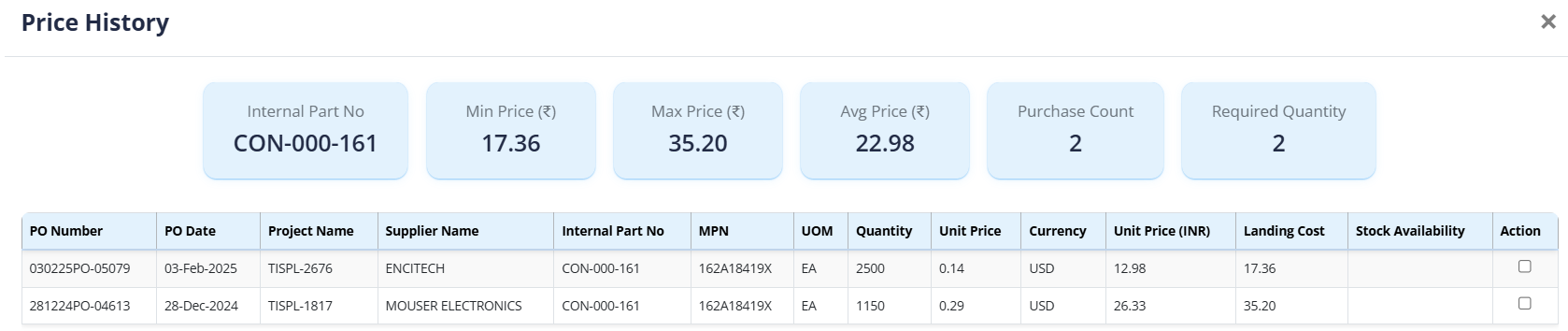
PO History: Shows past purchase orders for this part for reference. Displays "No Records" when no prior purchase orders exist.
- This feature is ideal for regularly purchased products. By clicking PO History, engineers can view past purchase orders and select a previous purchase cost to expedite project submission.
-
Risk (Inv, LT, Price): A visual risk assessment using colored dot indicators evaluating three factors:
- Inv: Inventory availability risk.
- LT: Lead Time stability risk.
- Price: Price volatility risk.
Each factor is represented by a colored dot (Green = Low risk, Yellow = Medium risk, Red = High risk).
Source
Click on the Source icon on the top left corner to make changes to individual parts.
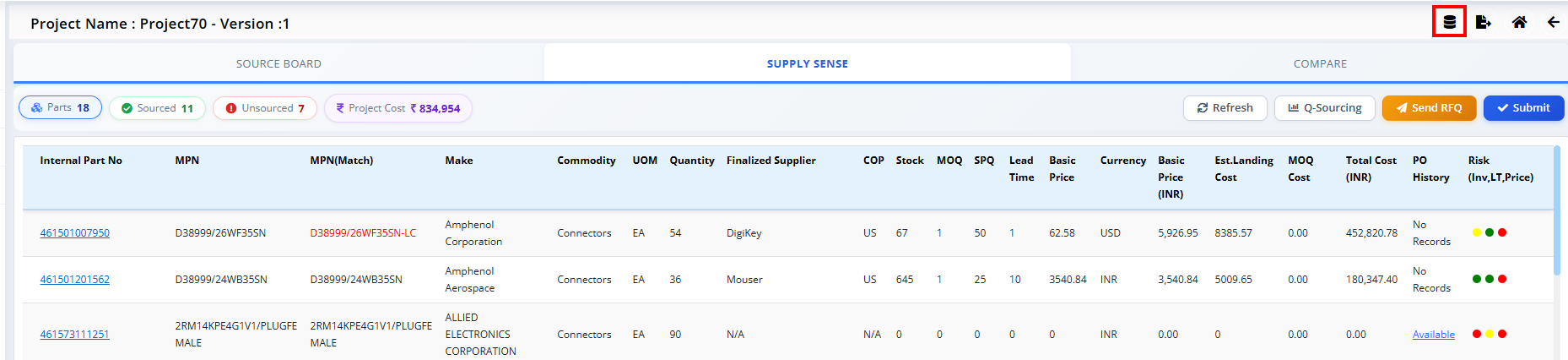
Once clicked, a dialogue box will appear with the following prompt:
Edit current version?
Choose whether to update this version directly.
We recommend creating a duplicate version before making changes, so the existing data is preserved for future reference.
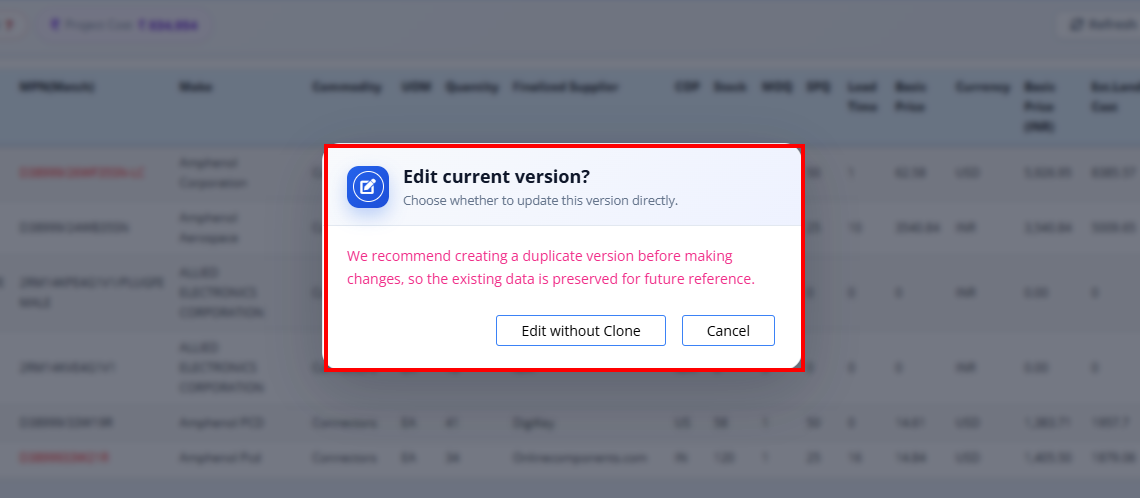
Click Edit Without Clone to proceed directly.
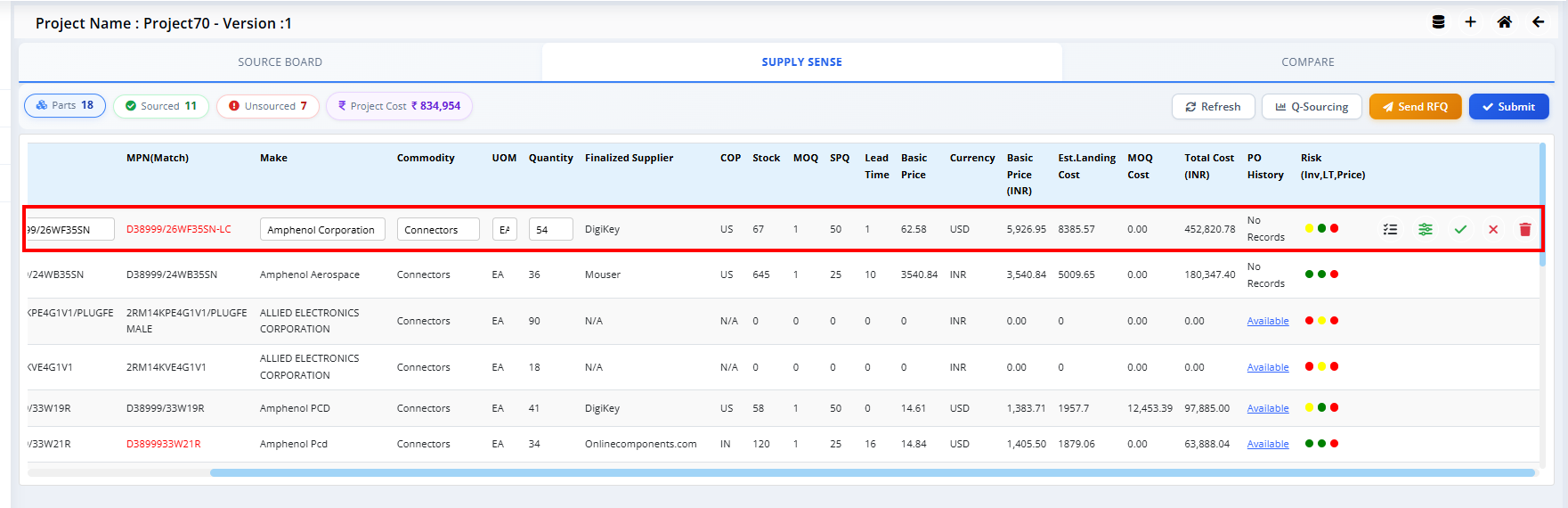
Once in edit mode, every part number will display an edit (pencil) icon. Clicking the pencil icon allows the user to modify the following fields:
- MPN: Manufacturer Part Number
- Make: Brand or manufacturer name
- Commodity: Part classification category
- UOM: Unit of Measure
- Quantity: Number of units required
There are also action icons available when scrolling to the right:
- Criteria: Click to select or change the sourcing criteria.
- Data Preference: Click to view or switch data preferences.
- Save: Save the changes made to the part.
- Cancel: Discard any unsaved changes.
- Delete: Remove the part from the project.
Adding a New Part
To add a new part, click the + (plus) icon at the top. The user can add a part either by:
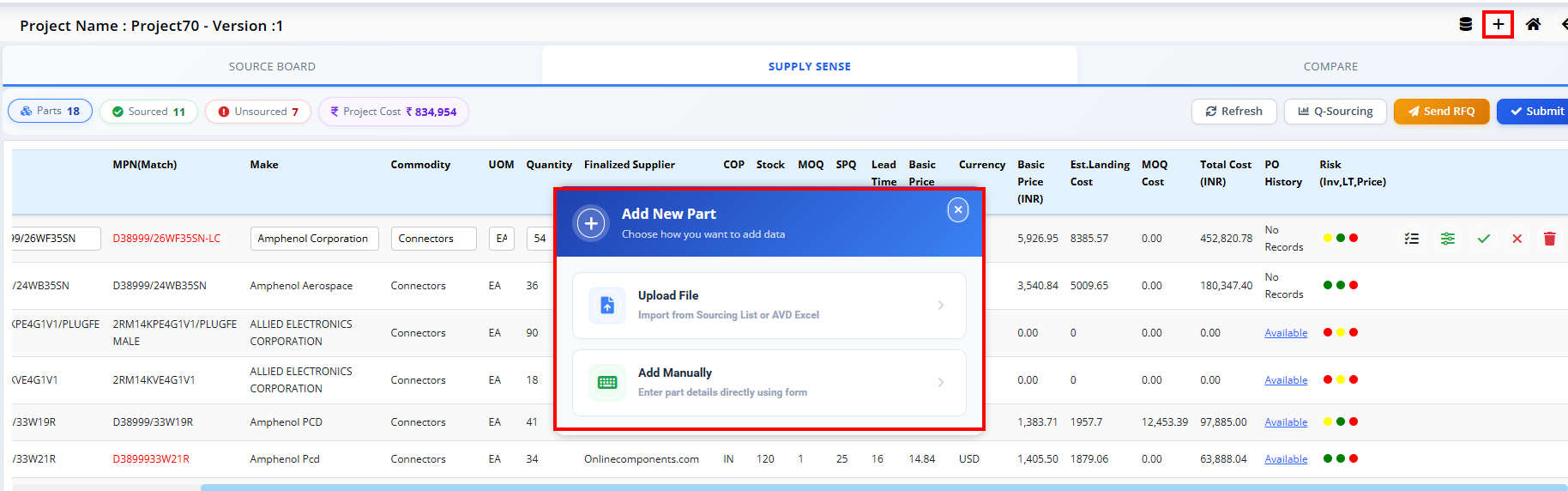
- Uploading a file containing part data, or
- Adding manually by filling in the details in the Add Part Manually dialogue box.
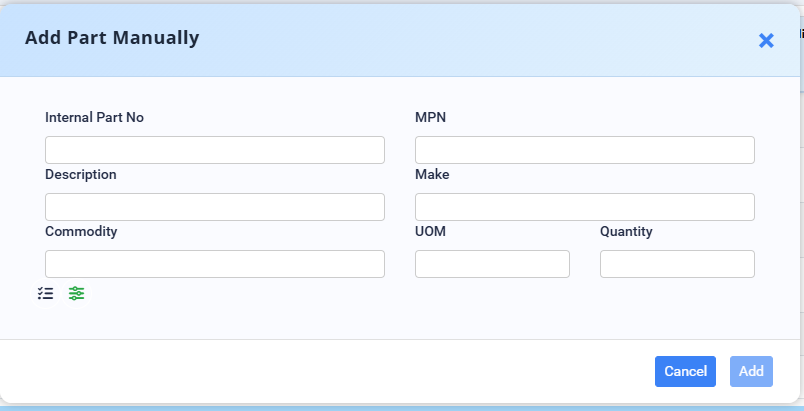
The Add Part Manually form contains the following fields:
- Internal Part No: The unique identifier for the part within the internal system.
- MPN: Manufacturer Part Number.
- Description: A brief description of the part.
- Make: The brand or manufacturer of the component.
- Commodity: The classification category of the part.
- UOM: Unit of Measure.
- Quantity: The number of units required.
Once the details are filled in, click Add to save the new part, or Cancel to close the dialogue without saving.
Compare
The Compare tab allows engineers to compare different costing scenarios or versions of the project side-by-side. This is useful for analyzing the impact of different suppliers, quantities, or sourcing strategies.
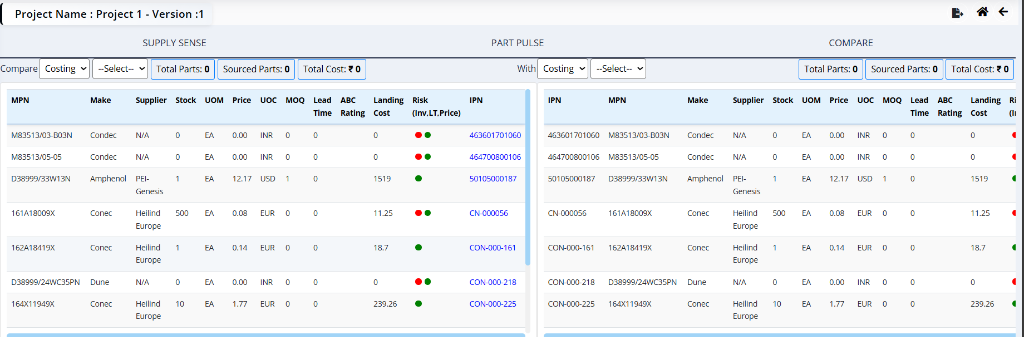
Comparison Interface
The interface is divided into two panels, each with its own dropdown selectors:
- Left Panel (Compare): Select the primary costing type (e.g., Costing) and version (e.g., V1) to compare from.
- Right Panel (With): Select the secondary costing type and version to compare against.
Each panel displays summary metrics for the selected scenario:
- Parts: Total number of parts in the selection (e.g., 1).
- Sourced: Number of parts that have been sourced (e.g., 1).
- Cost: The total calculated cost for the selection (e.g., ₹ 24,745).
Comparison Table
Below the summary metrics, a detailed table lists the parts for each panel, enabling a direct line-by-line comparison. The left and right panels share the same columns, with one difference — the right panel includes an additional IPN column as its first column:
- IPN (Right panel only): Internal Part Number — the unique identifier used within the internal system (e.g., deegtfik02).
- MPN: Manufacturer Part Number — the specific part number assigned by the manufacturer (e.g., 249-7868-3331-5...).
- Make: The brand or manufacturer name of the component (e.g., Dialight).
- Supplier: The vendor or supplier associated with this costing scenario (e.g., Future Electronics).
- Stock: The quantity currently available in inventory or with the supplier (e.g., 20).
- UOM: Unit of Measure — the standard unit used for quantifying the part (e.g., EA for Each).
- Price: The unit cost of the part in the specified currency (e.g., 7.05).
- UOC: Unit of Currency — the currency code for the price (e.g., USD).
- MOQ: Minimum Order Quantity — the smallest number of units that must be purchased (e.g., 4).
- Lead Time: The estimated time for delivery (e.g., 0).
- ABC Rating: A classification used to prioritize inventory management (A-items are high value, C-items are low value). Displayed as a blank/dash when not assigned.
- Landing Cost: The total cost per unit including shipping, customs, and duties (e.g., 727.8).
- Total Cost (INR): The final total cost for the required quantity, converted to Indian Rupees (e.g., 24,745.20).
- Risk (Inv, LT): A visual risk indicator using colored dots representing inventory and lead time risk (e.g., Red, Yellow, Green). (Left panel only.)