MANAGER DASHBOARD
After a successful login, managers are taken to the Dashboard, which is the main landing page of Source Buddy.
The Manager Dashboard provides a comprehensive summary of all ongoing projects and key metrics, allowing managers to quickly assess the current status and take necessary actions.
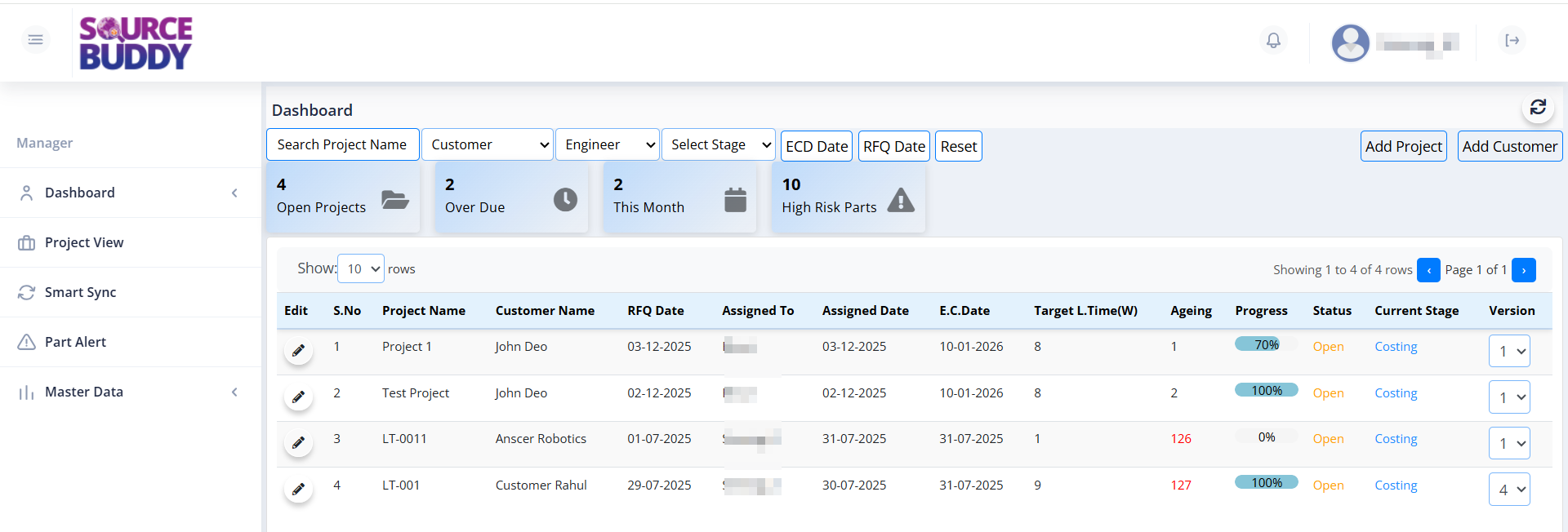
Dashboard Summary

A row of summary cards provides a high-level view of project metrics:
- Open Projects: Total number of active projects (for example,
2 Open Projects). - Over Due: Number of projects that have passed their due dates.
- This Month: Projects or tasks initiated in the current month.
- High Risk Parts: Count of project parts identified as high risk.
Search and Filters
The search and filter row allows managers to narrow down the project list:
- Search Project Name: Text field to search by project name.
- Customer: Dropdown to filter projects by customer.
- Engineer: Dropdown to filter projects by assigned engineer.
- Select Stage: Dropdown to filter by project stage (for example, Costing, Design).
- ECD Date / RFQ Date: Date pickers to filter by Estimated Completion Date and Request for Quotation date.
- Reset: Button that clears all active filters.
Add Project and Add Customer
The Manager Dashboard provides quick access to project and customer creation through two buttons: Add Project and Add Customer.
Only managers are authorized to add new projects.
Once a manager creates a project, it shows in the table and is then visible in the selected Engineer’s Dashboard.
Once a manager creates a project, it shows in the table and is then visible in the selected Engineer’s Dashboard.
2
Project Setup
Manager creates a project, defines landing cost parameters, and assigns it to an engineer.
Project Table
The main table lists all projects and their key details:

- Edit: A pencil icon that opens the Add/Modify Project form, allowing managers to update project details, change status, or modify configurations.
- S.No: The serial number indicating the row position in the current view (e.g., 1, 2, 3).
- Project No: The unique name or identifier assigned to the project (e.g., Project78, Project77).
- Customer Name: The name of the client or customer for whom the project is being executed (e.g., TATA, Test).
- RFQ Date: The date on which the Request for Quotation was received from the customer (e.g., 16-06-2026).
- Assigned To: The name of the engineer currently responsible for the project (e.g., deepa).
- Assigned Date: The date when the project was assigned to the engineer (e.g., 17-06-2026).
- E.C. Date: Estimated Completion Date — the target date by which the project should be finished (e.g., 20-06-2026).
- Target L.Time(W): Target Lead Time in weeks — the expected duration to complete the project (e.g., 12, 9, 8).
- Ageing: The number of days elapsed since the project was created or assigned. Displayed in red when overdue (e.g., 1, 2).
- Progress: A green progress bar showing the percentage of work completed (e.g., 100%, 81%).
- Approval Status: The current approval state of the project, displayed as a pill badge (e.g., Pending).
- Status: The current operational status of the project, displayed in color (e.g., Open in orange).
- Version: A dropdown indicating the current revision number of the project, used to track changes over time (e.g., 1).